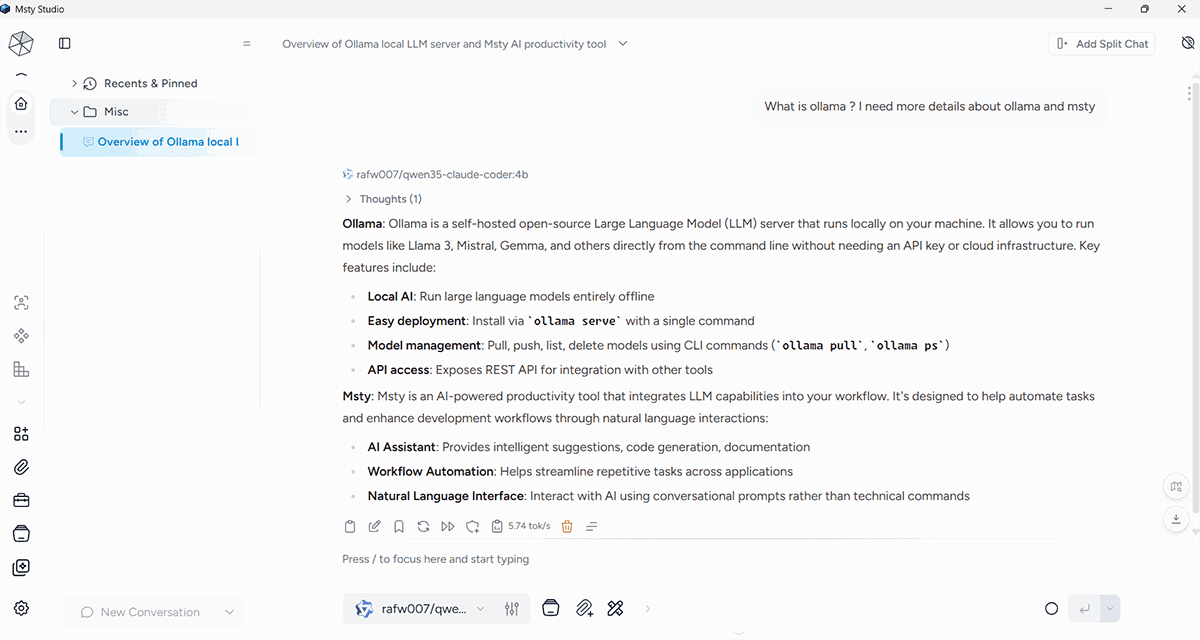
If you want to use Claude Code or a ChatGPT-like AI assistant on your own computer without paying for a monthly subscription, then Ollama and Msty are two of the best free options.
With Ollama, you can run open-source AI models locally on Windows, macOS, or Linux. Msty gives you a clean ChatGPT-like interface where you can chat with your local AI models. Once the model is downloaded, everything runs on your own computer, so your data stays private, and you can continue using it without an internet connection.
Let's learn how to set up a free local AI using Ollama and Msty.
Step 1: Install Ollama
First, download Ollama from the official website for Windows, macOS, or Linux.
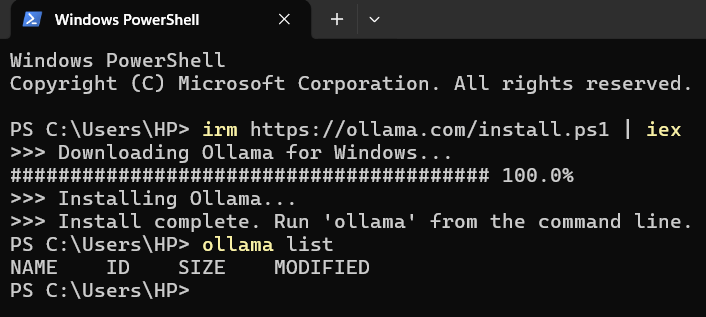
After downloading, open PowerShell (or Terminal if you are using macOS or Linux) and run the following command.
https://ollama.com/
irm https://ollama.com/install.ps1 | iex
The installation may take a few minutes depending on your internet speed.
Step 2: Verify the Installation
After Ollama is installed, check whether it is working correctly by running the command below.
ollama --version
If Ollama is installed successfully, it will display the installed version.
Step 3: Download the Claude Coder Model
Now we need to download an open-source AI model.
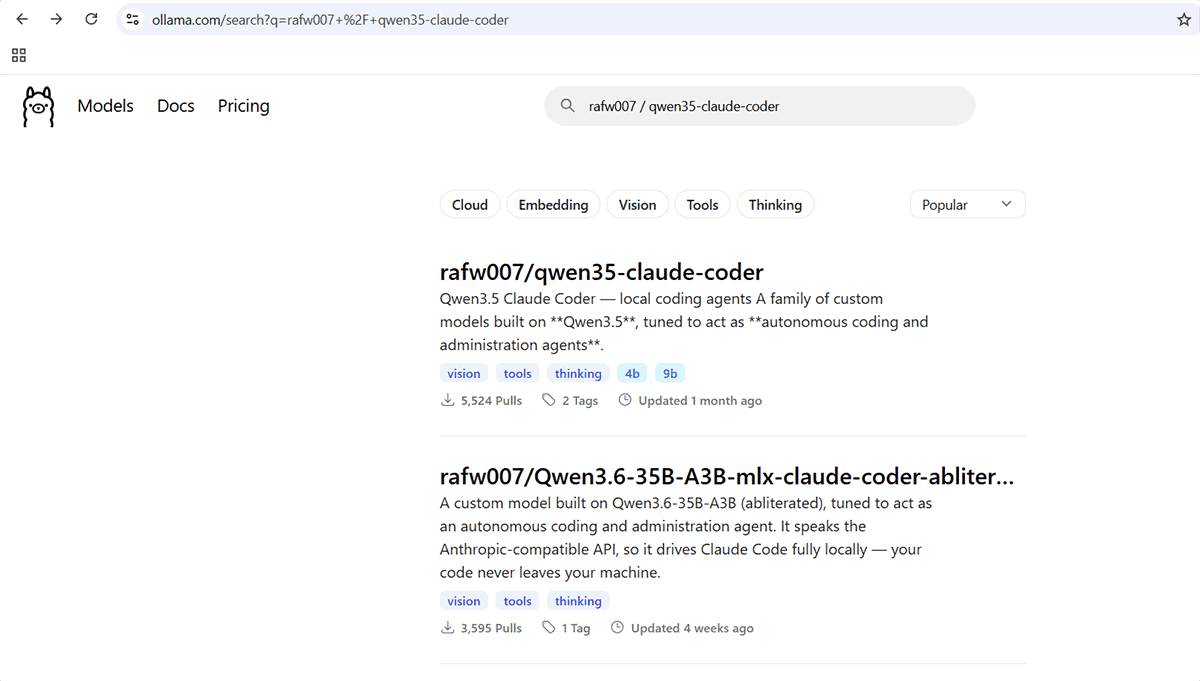
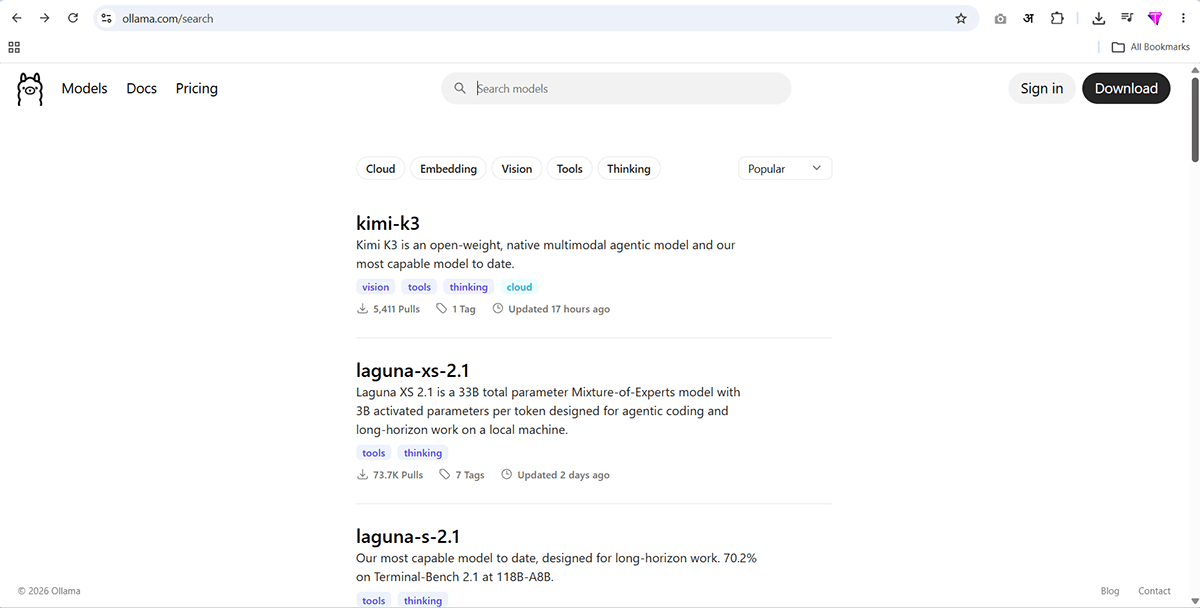
You can visit the Ollama website and choose any model you want. Every model has its own Ollama run command.
In this tutorial, we will use the Qwen Claude Coder 4B model.
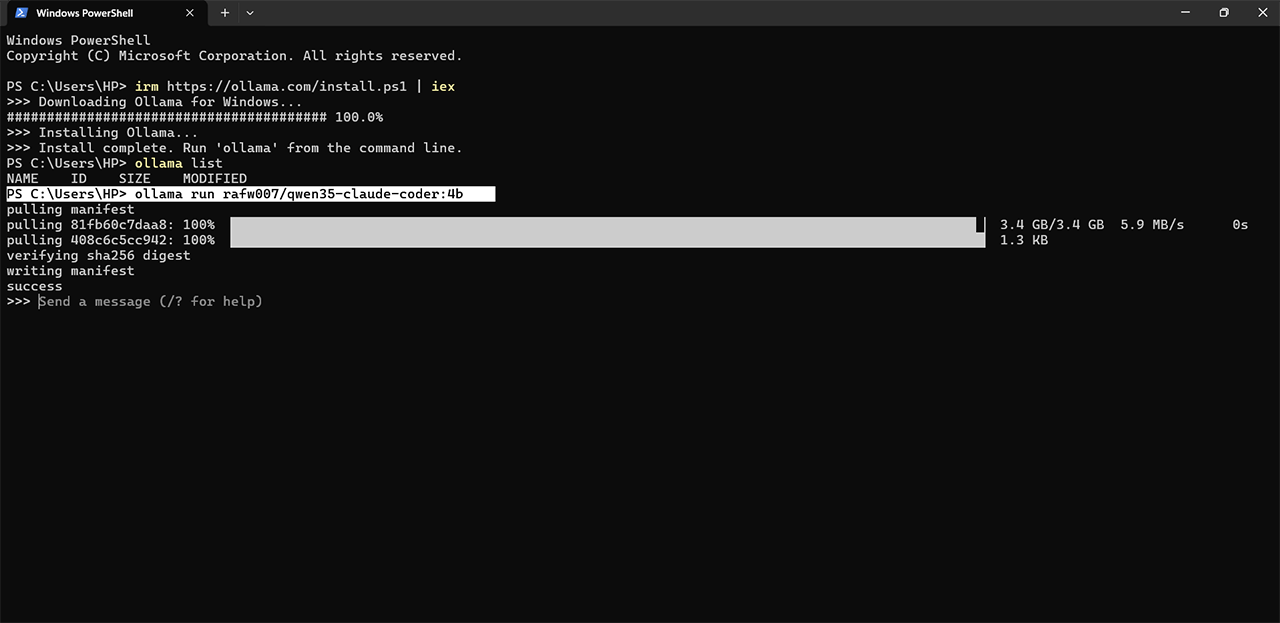
ollama run rafw007/qwen35-claude-coder:4b
The model size is around 3.5 GB, so the download may take some time depending on your internet connection.
Step 4: Start the Model
After the model is downloaded, it is ready to use.
This model is optimized for coding tasks, but you can install any other model available on the Ollama website by using its ollama run command.
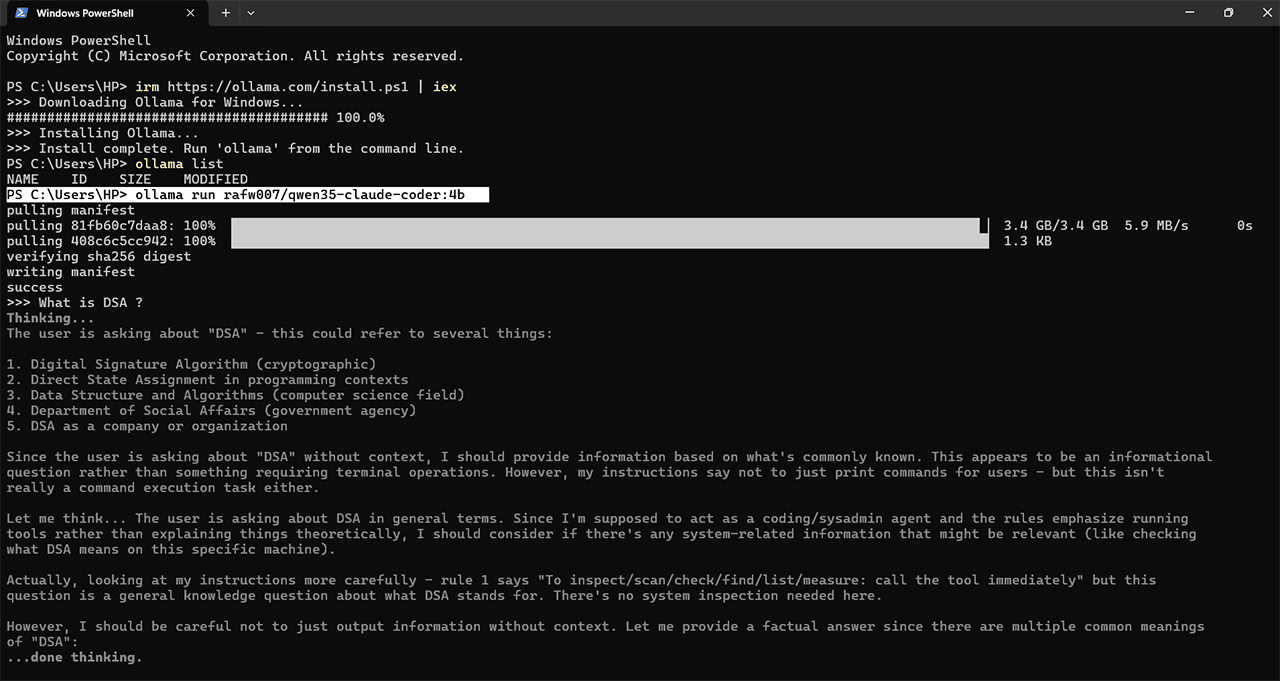 Or you can search for more models here and download same like above claude coder.
https://ollama.com/search
Step 5: View Installed Models
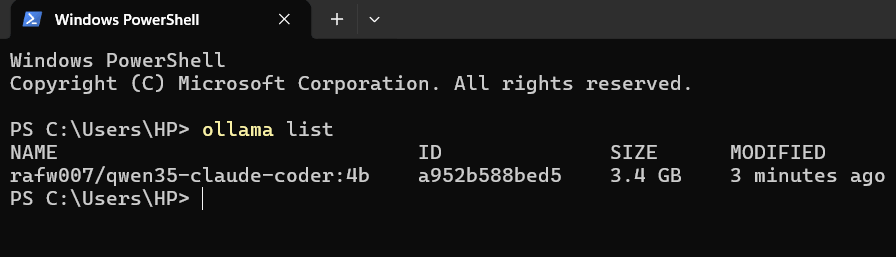
To see all the models installed on your computer, run the following command.
ollama list
Whenever you want to start the model again, simply run:
ollama run rafw007/qwen35-claude-coder:4b
You can install additional models by visiting the Ollama model library and running their commands.
Step 6: Check Whether Ollama Is Running
Before connecting Msty, make sure the Ollama server is running.
Open the following address in your browser.
http://localhost:11434/
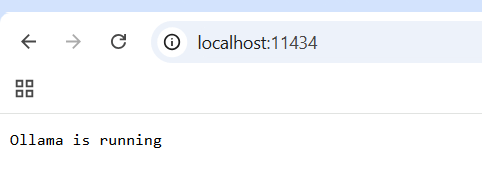
If you see a response from Ollama, your local AI server is running correctly.
Step 7: Download Msty
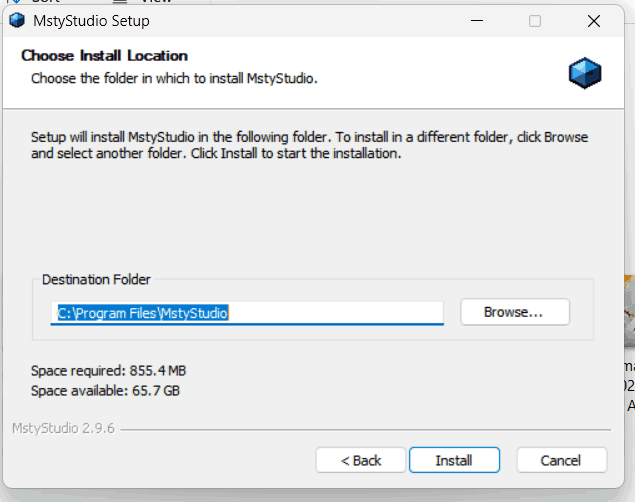
Now download Msty for your desktop from the official website and install it.
https://docs.msty.ai/studio/getting-started/download
After installation, open Msty.
Step 8: Connect Msty with Ollama
When Msty asks you to choose an AI provider, search for Ollama and select it.
If it asks for an API key, simply leave it blank.
For the server URL, use:
http://localhost:11434/
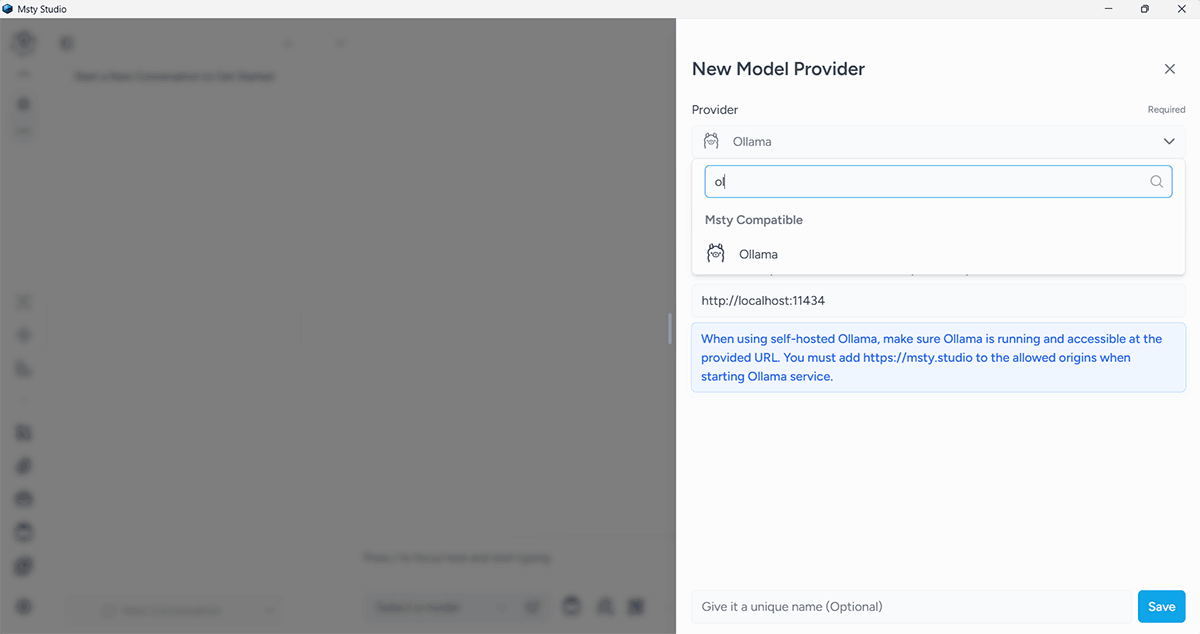
Msty will automatically detect your installed Ollama models.
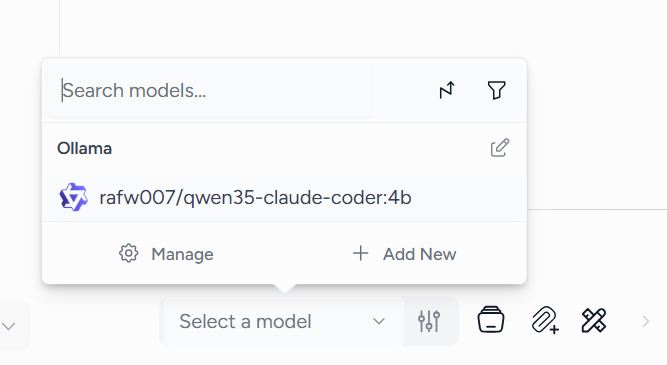
Now you can start chatting with your local AI just like ChatGPT. You can ask coding questions, generate code, write content, or use it for any other task.
If you want to install more models later, simply visit the Ollama website, choose any model, copy its Ollama run command, and run it in PowerShell or Terminal.
That's it. You now have a completely free local AI setup running on your own computer. There is no monthly subscription, your conversations stay on your device, and after downloading the model once, you can continue using it locally without paying any API fees.
Recommended Posts:-
