Inserting Data into the Database Using PHP
Inserting data into a database is handled by the SQL INSERT query. In this tutorial, we will perform two main tasks: first, insertion (using an INSERT query to securely save data into the database table), and second, fetching (using a SELECT query to display that data on a webpage). We will use an HTML form and a PHP script. When a user fills out the form and clicks the submit button, the values will be saved in the MySQL database, and then the data will automatically be displayed in an HTML table.
MySQL INSERT Query
As discussed above, we use the SQL INSERT query to put information into a MySQL database table. In a previous tutorial, we created a registration form using PHP and MySQL. To insert data successfully, you must understand the basic syntax of the INSERT query:
INSERT INTO `table_name` (`column_1`, `column_2`, `column_3`) VALUES ('value-1', 'value-2', 'value-3');
Create a Database Table Using SQL Query
Before we can insert data via PHP, we first need to create a table in our MySQL database. The HTML form data will be saved into this table. You can create the table using the phpMyAdmin panel or by executing an SQL query. Before creating the table, we must decide on the fields (columns) we need. Let's create a table named crud2.
CREATE TABLE `crud2` (
  `id` INT(11) NOT NULL AUTO_INCREMENT,
  `pname` VARCHAR(100) NOT NULL,
  `pcode` VARCHAR(50) NOT NULL,
  `pprice` VARCHAR(50) NOT NULL,
  PRIMARY KEY (`id`)
) ENGINE=InnoDB DEFAULT CHARSET=utf8mb4;
In the above query:
Table Name: crud2
Table Fields: pname (Product Name), pcode (Product Code), pprice (Product Price)
Make an HTML Form for Data Insertion
We need an HTML form to collect data from the user. When a user fills in the details and clicks the 'Add' button, the data is sent to our PHP script and inserted into the MySQL database. We will create input boxes for all the necessary fields.
HTML Insert Form
<html>
<head>
    <title>Insert Data</title>
</head>
<body>
    <form action="" method="POST" name="form1">
        <table border="0" width="30%">
            <tbody>
                <tr>
                    <td>Product Name</td>
                    <td><input name="pname" type="text" required /></td>
                </tr>
                <tr>
                    <td>Product Code</td>
                    <td><input name="pcode" type="text" required /></td>
                </tr>
                <tr>
                    <td>Product Price</td>
                    <td><input name="pprice" type="text" required /></td>
                </tr>
                <tr>
                    <td></td>
                    <td><input name="Submit" type="submit" value="Add Product" /></td>
                </tr>
            </tbody>
        </table>
    </form>
</body>
</html
Designing the INSERT Form Using CSS
With the help of a CSS stylesheet, we can make our HTML form look clean and attractive. Add this CSS to your page:
<style type="text/css">
input[type=text] {
  width: 100%;
  padding: 8px;
  margin: 5px 0;
  border: 1px solid #000000;
  border-radius: 4px;
}
input[type=submit] {
  width: 100%;
  padding: 10px;
  margin: 10px 0;
  border: none;
  outline: none;
  background-color: green;
  color: white;
  font-size: 16px;
  cursor: pointer;
  border-radius: 4px;
}
input[type=submit]:hover {
  background-color: darkgreen;
}
</style>
Here is what the output will look like:
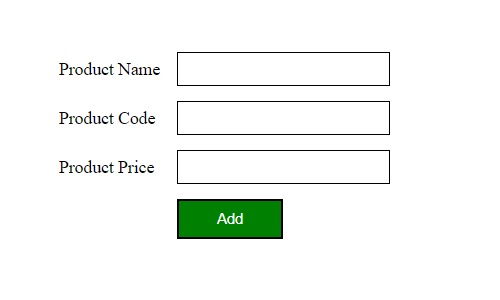
Create a Connection Config File
The configuration file handles the secure connection between your PHP script and the MySQL database using PDO (PHP Data Objects).
Create a file and save it with the name config.php.
<?php
// Database connection settings
$databaseHost = 'localhost';
$databaseName = 'tutorials'; // Change to your database name
$databaseUsername = 'root';  // Default for localhost
$databasePassword = '';      // Default for localhost

try {
    // Create a secure PDO connection
    $pdo = new PDO("mysql:host=$databaseHost;dbname=$databaseName;charset=utf8mb4", $databaseUsername, $databasePassword);
    $pdo->setAttribute(PDO::ATTR_ERRMODE, PDO::ERRMODE_EXCEPTION);
} catch(PDOException $e) {
    die("Database connection failed: " . $e->getMessage());
}
?>
Create a PHP Script to INSERT Data into MySQL
Now we will write the PHP logic to insert the form data into the database table securely.
1. Include the config.php file using the include() function.
2. Check if the form was submitted using the `isset()` function.
3. Validate the input fields. If any field is empty, display an error message.
4. If all fields are filled, execute an `INSERT` query using PDO Prepared Statements to prevent SQL injection.
PHP Script Code (Insertion)
<?php
// Include the database connection file
require_once("config.php");

if(isset($_POST['Submit'])) {
    $pname = trim($_POST['pname']);
    $pcode = trim($_POST['pcode']);
    $pprice = trim($_POST['pprice']);

    // Checking for empty fields
    if(empty($pname) || empty($pcode) || empty($pprice)) {
        if(empty($pname)) {
            echo "<font color='red'>Product Name field is empty.</font><br/>";
        }
        if(empty($pcode)) {
            echo "<font color='red'>Product Code field is empty.</font><br/>";
        }
        if(empty($pprice)) {
            echo "<font color='red'>Product Price field is empty.</font><br/>";
        }
        // Link to go back to the previous page
        echo "<br/><a href='javascript:self.history.back();'>Go Back</a>";
    } else {
        try {
            // Use PDO Prepared Statements for secure insertion
            $sql = "INSERT INTO crud2 (pname, pcode, pprice) VALUES (:pname, :pcode, :pprice)";
            $stmt = $pdo->prepare($sql);

            // Execute the query
            $stmt->execute([
                ':pname' => $pname,
                ':pcode' => $pcode,
                ':pprice' => $pprice
            ]);

            // Display success message
            echo "<font color='green'>Data added successfully.</font>";
            echo "<br/><a href='index.php'>View Results</a>";

        } catch(PDOException $e) {
            echo "<font color='red'>Error: " . $e->getMessage() . "</font>";
        }
    }
}
?>
MySQL SELECT Query
Once you have inserted data into the MySQL database, you need to display it. The SELECT query is used to fetch data from the database so it can be displayed in an HTML table. Let's look at the basic syntax of a SELECT query:
SELECT * FROM `table_name` ORDER BY id DESC;
Display Data in an HTML Table Using PHP
Now, we will fetch the data from our crud2 table and display it.
1. Include the config.php file.
2. Execute a SELECT query to pull all records.
3. Use a while loop with fetch(PDO::FETCH_ASSOC) to iterate through the data row by row.
4. Use the echo statement to print the data into standard HTML table columns.
Display Data in Table (index.php)
<?php
// Include the database connection file
require_once("config.php");

// Fetch data in descending order (latest entry first)
$sql = "SELECT * FROM crud2 ORDER BY id DESC";
$stmt = $pdo->query($sql);
?>

<html>
<head>
    <title>View Products</title>
</head>
<body>
    <a href="add.html">Add New Product</a><br/><br/>

    <table width='50%' border='1' style='border-collapse: collapse; text-align: left;'>
        <tr style='background-color: #f2f2f2;'>
            <th padding='5'>Product Name</th>
            <th padding='5'>Product Code</th>
            <th padding='5'>Product Price</th>
        </tr>

        <?php
        // Loop through each row of data
        while($row = $stmt->fetch(PDO::FETCH_ASSOC)) {
            echo "<tr>";
            echo "<td style='padding: 5px;'>" . htmlspecialchars($row['pname']) . "</td>";
            echo "<td style='padding: 5px;'>" . htmlspecialchars($row['pcode']) . "</td>";
            echo "<td style='padding: 5px;'>" . htmlspecialchars($row['pprice']) . "</td>";
            echo "</tr>";
        }
        ?>
    </table>
</body>
</html>
Recommended Posts:-
