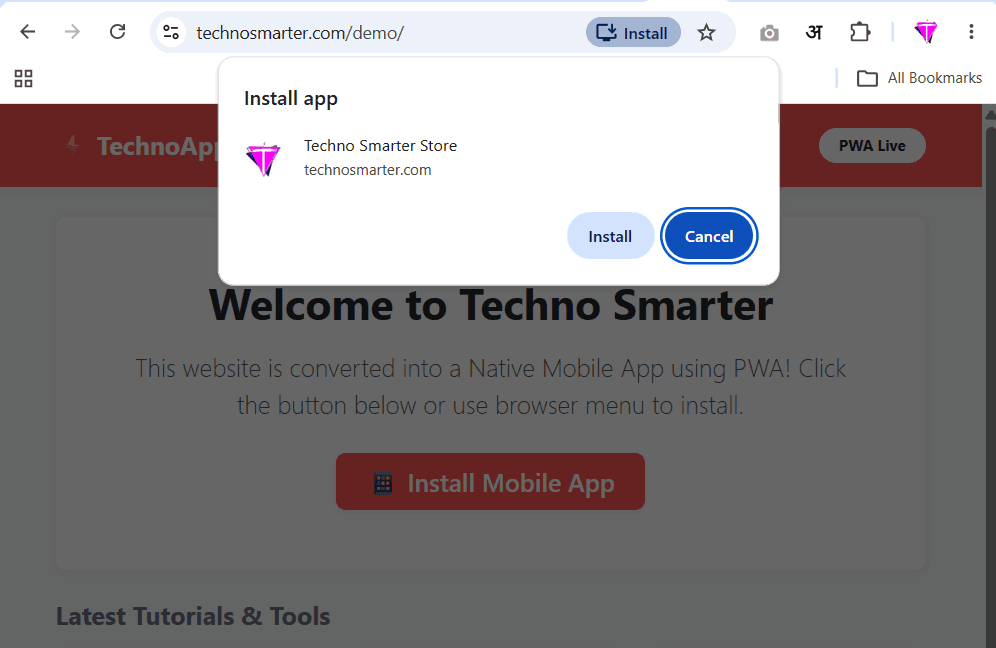
If you want to convert any website into a mobile app or Windows app without spending thousands of dollars, you should know about PWA (Progressive Web App).
What is PWA?
PWA is one of the smartest ways to convert a normal PHP or WordPress website into a mobile app without developing a separate Android or iOS application. Along with Android and Windows, you can also use the same technology for Apple devices.
When you use PWA, users do not need to visit the Google Play Store or Apple App Store. As soon as they open your website, they will see an Install App or Add to Home Screen button. With just one click, your website is installed on their phone like a real mobile app.
If users open your website in Google Chrome on Windows, they can install it as a Windows app. If they open it in a supported browser, they can simply click the Install button and use your website like a native application.
How Does PWA Work?
In simple words, PWA is a technology that converts a normal website into a mobile app.
If users install it on Windows, it works like a Windows application. If they install it on an iPhone or iPad, it behaves like an iOS app.
After installation, the browser address bar disappears, and the website opens in full-screen mode like a real mobile application. The app icon also appears on the phone's home screen along with other installed apps.
Another great feature of PWA is that it works with very little internet. If the user has already visited your website, previously opened pages can still be viewed even when there is no internet connection. To view new or updated content, an internet connection is required.
A normal Play Store app may be 50 MB or 100 MB in size, while a PWA usually installs in only 200 KB to 500 KB, making it much faster and lighter.
Let's Convert a PHP or WordPress Website into a PWA
Now let's learn how to convert any PHP or WordPress website into a Progressive Web App.
Step 1: Prepare Your App Icons
You do not need any heavy coding to create a PWA. You only need three things:
Two app icons
manifest.json file
sw.js (Service Worker)
First, create two PNG icons from your website logo.
icon-192x192.png (192 × 192 pixels)
icon-512x512.png (512 × 512 pixels)
Upload both files to your website's root directory, where your index.php or wp-config.php file is located.
Step 2: Create the manifest.json File
Create a new file named manifest.json inside your website's root directory and paste the following code.
manifest.json
{
  "name": "Techno Smarter",
  "short_name": "TechnoSmarter",
  "start_url": "/",
  "display": "standalone",
  "background_color": "#ffffff",
  "theme_color": "#ff5252",
  "orientation": "portrait-primary",
  "icons": [
    {
      "src": "/assets/icon/icon-192x192.png",
      "type": "image/png",
      "sizes": "192x192",
      "purpose": "any maskable"
    },
    {
      "src": "/assets/icon/icon-512x512.png",
      "type": "image/png",
      "sizes": "512x512",
      "purpose": "any maskable"
    }
  ]
}
You can change the name, short_name, and theme_color according to your website branding.
The display: "standalone" setting is the most important part because it removes the browser address bar and makes your website open like a real mobile app.
Step 3: Create the Service Worker (sw.js)
The Service Worker is the heart of a Progressive Web App.
It runs in the background and stores important website files in the browser cache. Because of this, your website loads much faster and can even work offline for previously visited pages.
Create a new file named sw.js inside your website's root directory and paste the following code.
sw.js
// Techno Smarter - PWA Service Worker
const CACHE_NAME = 'techno-pwa-v1';
const urlsToCache = [
  '/'
];

// 1. Install Service Worker
self.addEventListener('install', event => {
  event.waitUntil(
    caches.open(CACHE_NAME)
      .then(cache => {
        return cache.addAll(urlsToCache);
      })
  );
});

// 2. Fetch Resources (Fast Loading)
self.addEventListener('fetch', event => {
  event.respondWith(
    caches.match(event.request)
      .then(response => {
        return response || fetch(event.request);
      })
  );
});
Step 4: Connect Your Website with PWA
Now we need to connect the PWA files to the website.
If you have a custom PHP website, open your header.php file or the file that contains the <head> section.
If you are using WordPress, open your theme's header.php file and paste the following code between the <head> and </head> tags.
 <link rel="manifest" href="/manifest.json">
<meta name="theme-color" content="#ff5252">
 <script>
if ('serviceWorker' in navigator) {
  window.addEventListener('load', () => {
    navigator.serviceWorker.register('/sw.js')
      .then(reg => console.log('PWA Service Worker Registered!'))
      .catch(err => console.log('PWA Error:', err));
  });
}
</script>
After adding this code, your website will be connected to the manifest file and Service Worker.
How to Check if PWA is Working
1. Use HTTPS
PWA only works on secure websites, so your website must have an SSL certificate and open with https://.
You can still test it on localhost during development.
2. Test on Desktop
Open your website in Google Chrome.
Press F12 to open Developer Tools.
Click the Application tab and then open Manifest and Service Workers.
If there are no errors and your icons are displayed correctly, your PWA is working properly.
3. Test on Mobile
Open your website in the Chrome browser on your Android phone.
You will see an Install App or Add to Home Screen popup.
Click it, and your website will be installed on your phone like a real mobile app.
Final Words
With these four simple steps, you can convert any old or new PHP or WordPress website into a fast, modern, and professional mobile application in just a few minutes.
You do not need to spend money on Android or iOS app development. Simply use PWA and let users install your website directly from their browser.
Recommended Posts:-
