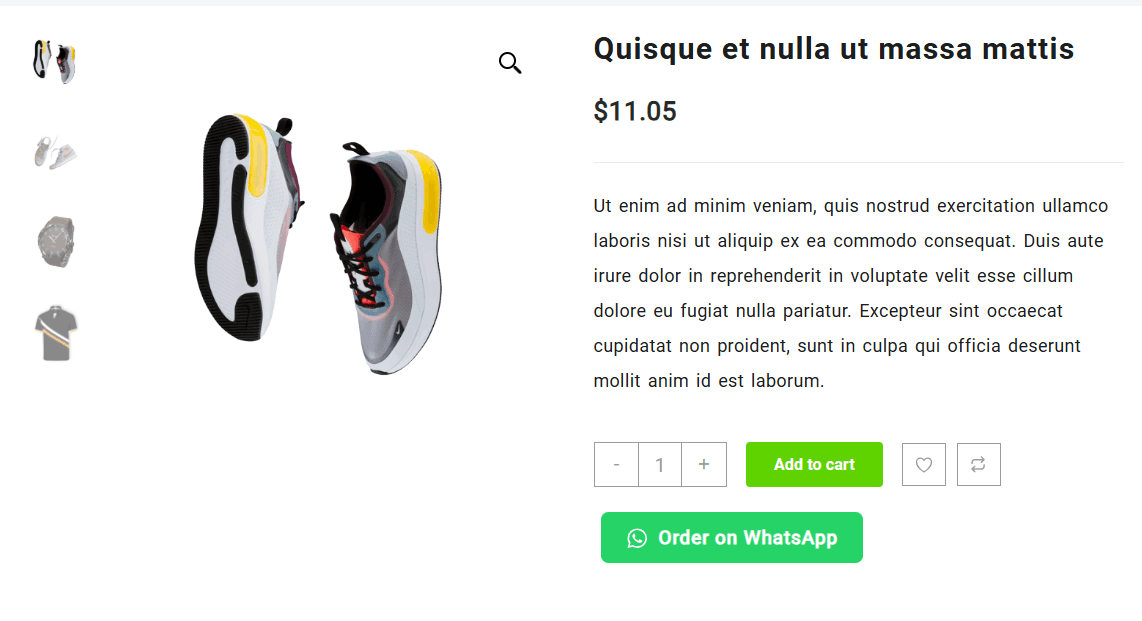
Having a direct order option is very important for any WordPress e-commerce website. If you are using the WooCommerce plugin in WordPress, you can add an "Order on WhatsApp" button on your product pages so that any visitor who wants to can place an order directly on WhatsApp.
Nowadays, almost everyone uses WhatsApp, which makes it very easy for customers to place orders through it. When a customer visits a product page on your website, they see the Order on WhatsApp button and can select the quantity right there before ordering. You can place this Order on WhatsApp button on the Single Product page, Shop page, Cart page, and Checkout page. You can also easily customize the button directly from your WordPress dashboard—including button color, size, padding, text, and more.
There are many plugins available in the market, but most of them are not free and lock useful features behind paid plans. In this tutorial, we will download, install, and use a 100% free plugin that gives you all these features at no cost.
To solve this problem, we built Techno Smarter Chat Order Flow for WooCommerce—a 100% free and lightweight WordPress plugin that lets your customers order directly on WhatsApp from Product Pages, Shop Pages, Cart, and Checkout without needing any paid API.
Key Features of Techno Smarter Chat Order Flow for WooCommerce
This plugin uses the official WhatsApp Click-to-Chat (wa.me) link, so you don't need any third-party server or monthly subscription:
- 100% Free & No API Required: Simply enter your WhatsApp number with your country code and go live in less than a minute.
- Single Product Page Button: Customers can order directly from any product page, and whatever quantity they select is automatically included in the WhatsApp message.
- Shop & Category Page Button: Optionally show the Order on WhatsApp button on your Shop and Category listing pages as well.
- Cart Page WhatsApp Order (Classic + Block Cart): Customers can send their entire cart list—including quantities, prices, and total amount—to your WhatsApp in one click. It supports both Classic Cart and the new WooCommerce Cart Block.
- Checkout Auto-Redirect & Thank You Button: Saves the complete order in your WooCommerce dashboard first, then automatically redirects the customer to WhatsApp (or displays a button on the Thank You page) with the Order ID, items, total amount, and billing address already filled in.
- Click-to-Insert Dynamic Tokens: Customize your product, cart, and order messages easily by clicking ready-made tokens like
{product-name}, {product-price}, {product-qty}, {order-number}, {order-total}, {customer-name}, and {customer-address}.
- Full Button Style Controls: Change the button's background color, hover color, text color, font size, icon size, padding, margin, and border radius straight from settings— no CSS coding required.
- WooCommerce HPOS Compatible: Fully compatible with modern WooCommerce High-Performance Order Storage.
Free Plugin Download
Download the plugin .zip file for free using the button below:
Download Techno Smarter Chat Order Flow for WooCommerce (.ZIP)
License: 100% Free
Step 1: Install and Activate the Plugin in WordPress
Before starting, make sure WooCommerce is already installed and activated on your WordPress website.
- Log in to your WordPress Admin Dashboard.
- Go to Plugins → Add New Plugin from the left menu.
- Click the "Upload Plugin" button at the top.
- Click Choose File, select the
techno-smarter-chat-order-flow-for-woocommerce.zip file, and click "Install Now".
- Once installation is complete, click "Activate Plugin".
After activation, go to WooCommerce → Chat Order Flow in your left sidebar (or click the Settings link directly on the Plugins page).
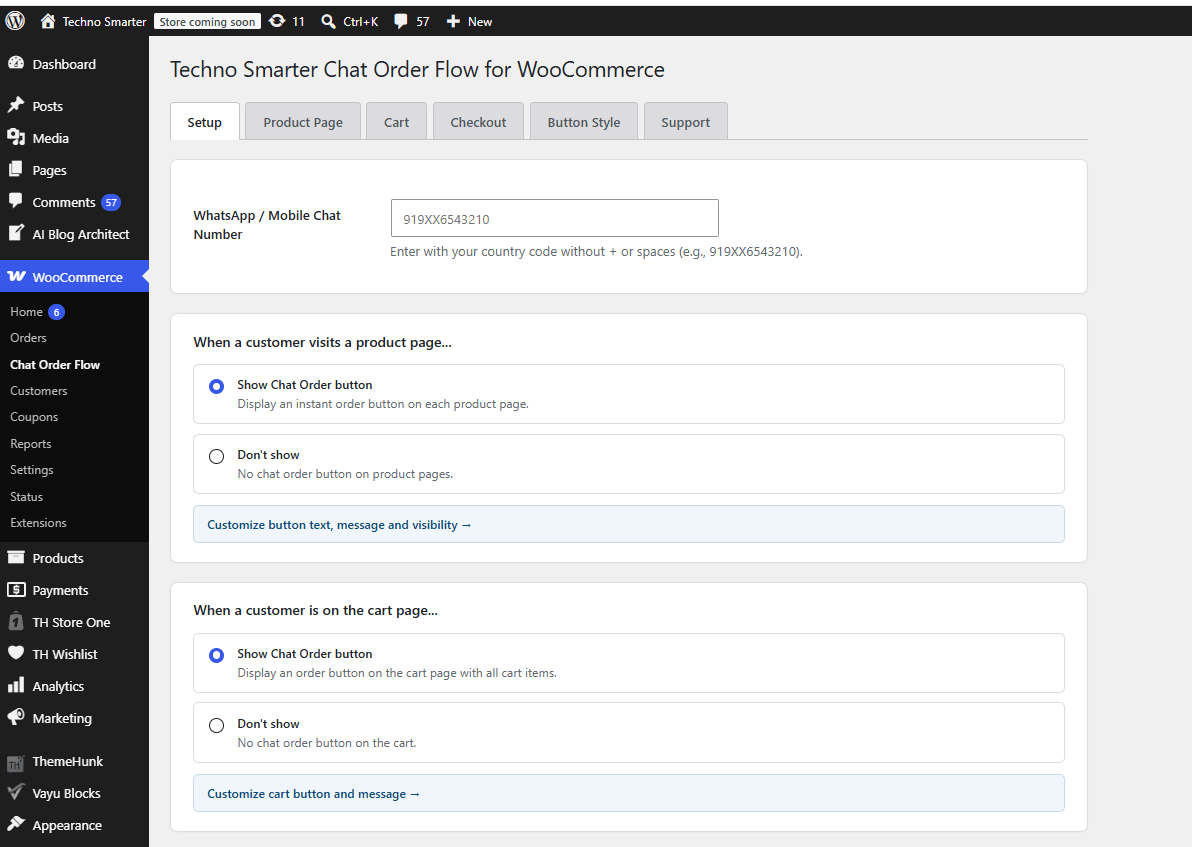
Step 2: Basic Setup (WhatsApp Number & Button Visibility)
Open the Setup tab inside WooCommerce → Chat Order Flow and configure these basic settings:
- WhatsApp / Mobile Chat Number: Enter your WhatsApp number along with your country code—make sure there is no
+ sign, space, or dash (for example, 91713X5X7891 for India).
- Product Page Setting: Select "Show Chat Order button" to display the button on single product pages.
- Cart Page Setting: Select "Show Chat Order button" so customers can send their full cart to WhatsApp in one click.
- Checkout Setting: Choose what happens after an order is placed at checkout:
- Redirect customer to Chat + Show Thank You Button: Saves the order in WooCommerce first, then automatically redirects the customer to WhatsApp with the complete order summary.
- Show Chat Button on Thank You Page Only (No Auto-Redirect): Keeps the customer on the Thank You page where they can click the button to send their order details on WhatsApp.
- Don't redirect: Keeps standard WooCommerce checkout with no WhatsApp action.
After selecting all options, click Save settings.
Step 3: Customize Product, Cart, and Checkout Messages
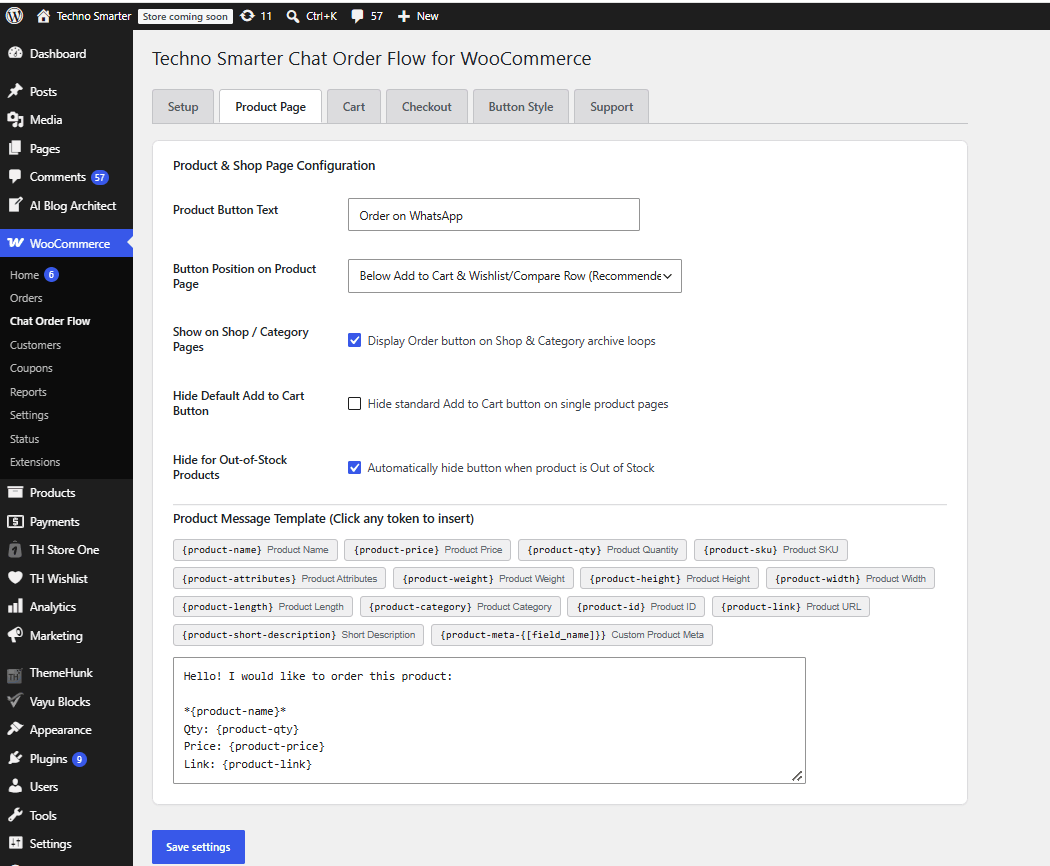
Using the separate tabs at the top, you can customize the button text and WhatsApp message for each page:
- Product Page Tab: Change the button text (e.g.,
Order on WhatsApp), pick the button position (below the Add to Cart form, next to Add to Cart, before Add to Cart, or after Product Meta), enable the button on Shop/Category pages, hide the default Add to Cart button if needed, and automatically hide the button for Out-of-Stock products.
- Cart Tab: Set the cart button text (e.g.,
Complete Order on WhatsApp) and define how each cart item is formatted inside {cart-products} along with {cart-total}.
- Checkout Tab: Edit the WooCommerce "Place Order" button text, the Thank You page button text, and the complete order message template.
To edit any message template, simply click the Token Chips above the text box (such as {product-name}, {product-qty}, {order-number}, {customer-phone}, {customer-address}) to insert them directly into your message.
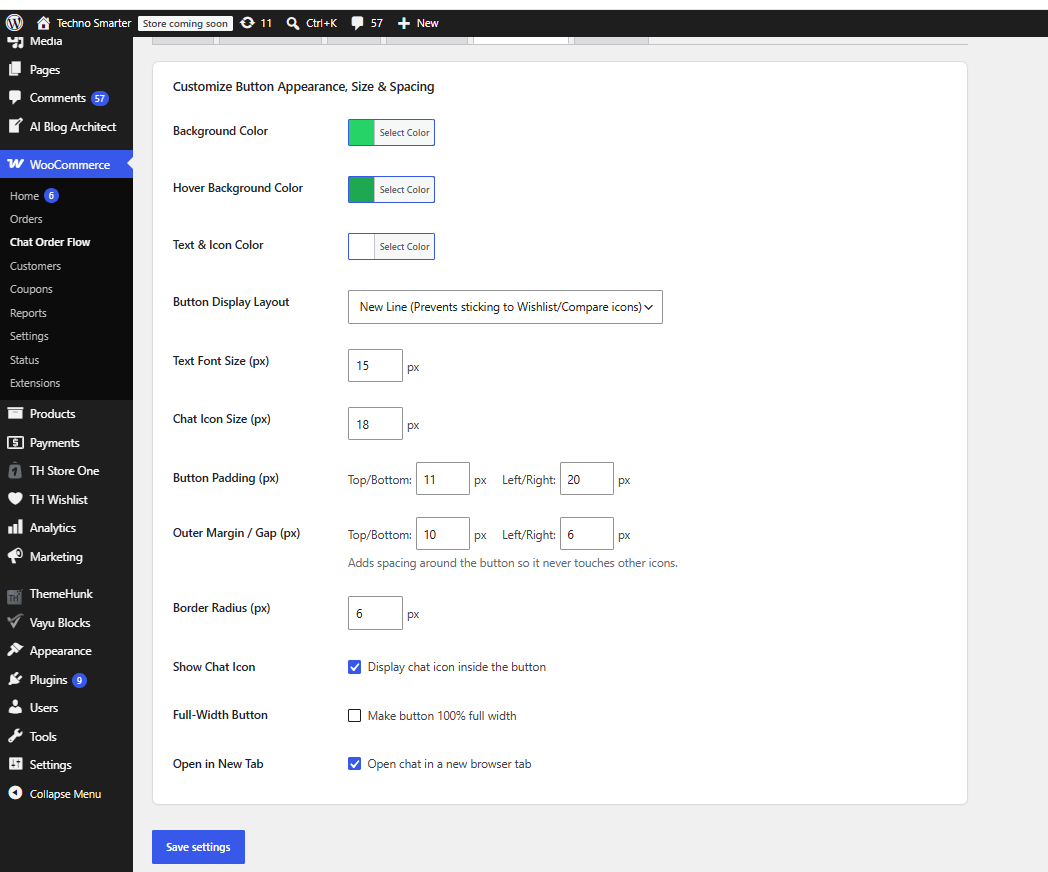
Step 4: Customize the Button Design (Button Style Tab)
If you want the WhatsApp button to match your website theme's colors and layout, open the Button Style tab:
- Set the Background Color, Hover Background Color, and Text & Icon Color using the color picker.
- Adjust Font Size, Chat Icon Size, Padding, Outer Margin, and Border Radius to fit your design.
- Button Display Layout: If your theme shows Wishlist or Compare icons next to the Add to Cart button, keep this set to New Line—this keeps the WhatsApp button from sticking to other buttons.
- Turn Show Chat Icon, Full-Width Button, and Open in New Tab on or off as needed.
Finally, click Save settings.
Step 5: Test Your WhatsApp Order Flow
Once setup is done, test your website on both desktop and mobile:
- Open any in-stock product page, change the quantity to
2, and click Order on WhatsApp—WhatsApp should open with the product name, updated quantity, price, and link already filled in.
- Add 2–3 products to your cart, open the Cart Page, and click Complete Order on WhatsApp to verify the full cart summary.
- Place a test order at Checkout and confirm that the order is saved under WooCommerce → Orders and the full order details open in WhatsApp.
Common Issues and Fixes (Troubleshooting)
- Button is not showing on Product or Cart page: First, check that you entered your WhatsApp Number in the Setup tab and saved the settings. If the number field is empty, the plugin hides all buttons automatically. Also clear your cache plugin (LiteSpeed Cache, WP Rocket, etc.) and verify that the product is not marked Out of Stock.
- Wrong phone number error in WhatsApp: Make sure you added the right country code before your number (such as
91 for India or 1 for the USA) without any + sign, spaces, or leading 0.
Frequently Asked Questions (FAQs)
Q1: Do I need a paid WhatsApp Business API to use this plugin?
No. This plugin uses standard click-to-chat (wa.me) links, which are 100% free and work with both regular WhatsApp and WhatsApp Business apps on mobile and desktop.
Q2: Does this plugin also save orders in WooCommerce?
Yes. When a customer places an order through Checkout, the order is saved in your WooCommerce Orders list first, and then the complete order summary (including the Order Number) opens in WhatsApp.
Q3: Does it work with the new WooCommerce Cart Block?
Yes. The Cart Page WhatsApp button works smoothly with both the Classic WooCommerce Cart shortcode and the new WooCommerce Cart Block.
Q4: Can I hide the default WooCommerce "Add to Cart" button and accept orders only on WhatsApp?
Yes. Just go to the Product Page tab in the plugin settings, check the "Hide standard Add to Cart button on single product pages" option, and save your settings.
